|
|
| |
Lactate Scout - Software and
Cable |
| |
This page is new and may be revised
in the next two-three weeks to include more examples. |
| |
| The Lactate Scout has an interface at
the bottom of the analyzer for transferring data from the analyzer
to a computer. A picture of this interface is below. |
|
A cable comes with your first analyzer*.
This cable connects the Lactate Scout to the serial port of a PC.
Free software is also provided to download the data from the analyzer
into a special charting program also provided free by SensLab, the
manufacturer of the analyzer.
*For a limited time, in the Western hemisphere only, the first analyzer
you purchase comes with a free cable and software CD. |
|
| Once the data has been imported into
the charting software, it is possible to create charts of an athlete's
step test and to compare each test with a previous test or with
a test for another athlete. |
| |
Creating
a Chart |
| |
Step 1 |
|
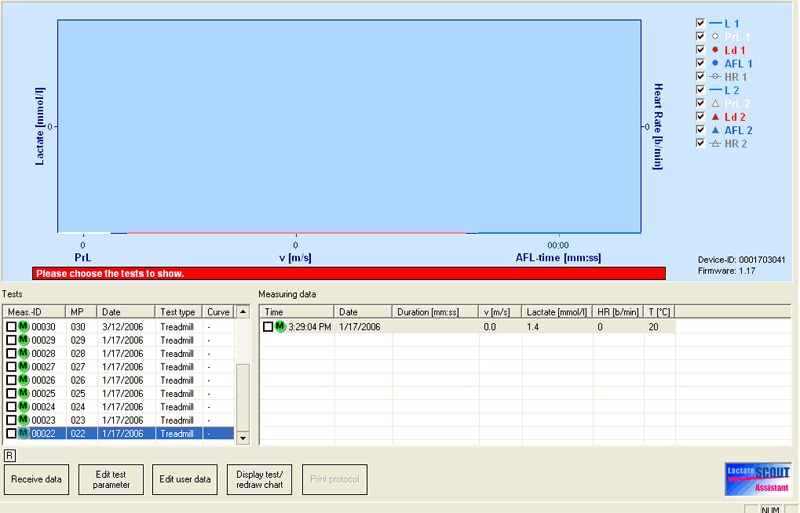
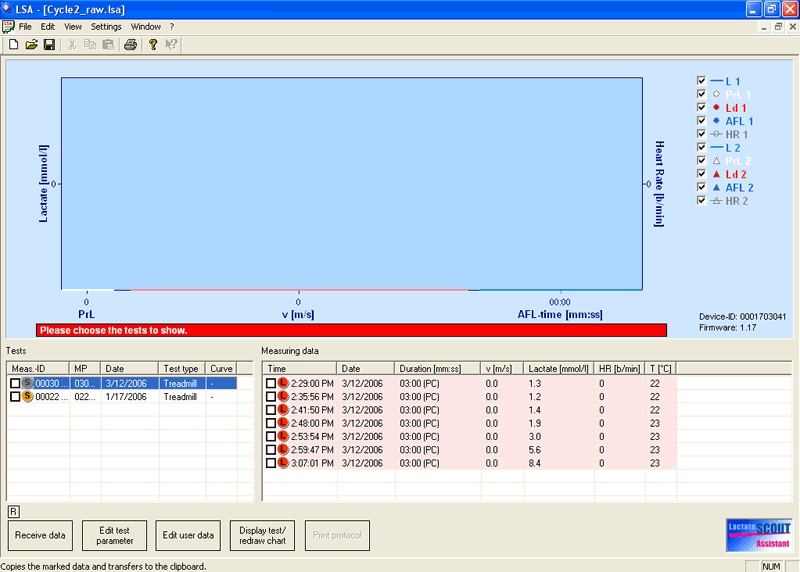
Data is imported by launching the
software, with the cable hooked up and the analyzer turned on.
A blank software screen appears first. To import data, click on
the lower leftmost button (Receive data).
The data will appear in the "Tests" window in the bottom
left part of the screen. There is a green M in each line, which
indicates that it is an individual reading. The default test type
is labeled Treadmill. Both these designations can be changed manually
within the software program. When you select one or more lines
in the Test Window, they appear in the lower right window "Measuring
data". This window is referred to as the "Values"
window in the instructions. For example, reading number 022 is
selected and it appears in the Values window. The effort level
and heart rate will be entered manually later.
|

|
Step 2 |
| |
|
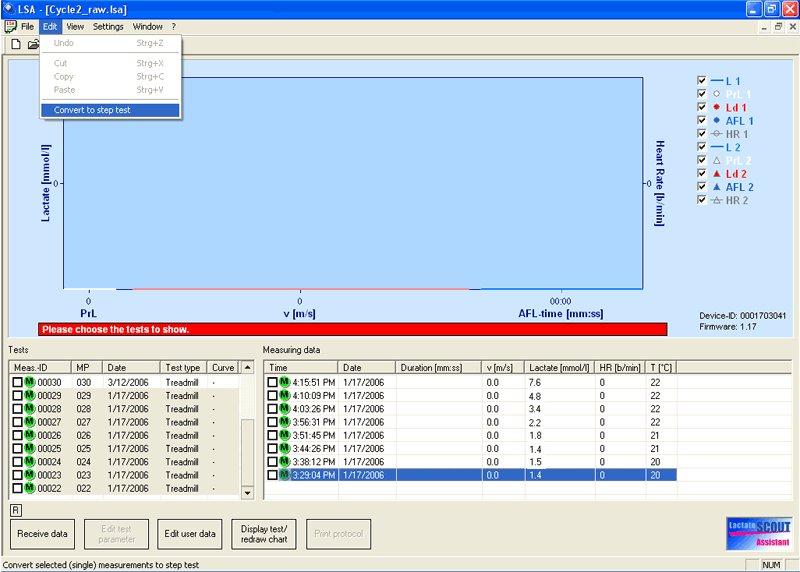
| All the data for January 17th, 2006 is
highlighted in the Tests window and the corresponding readings appear
in the Values window. In the edit menu at the top there is an option
to convert the data to a step test. |
|
Step 3 |
| |
|
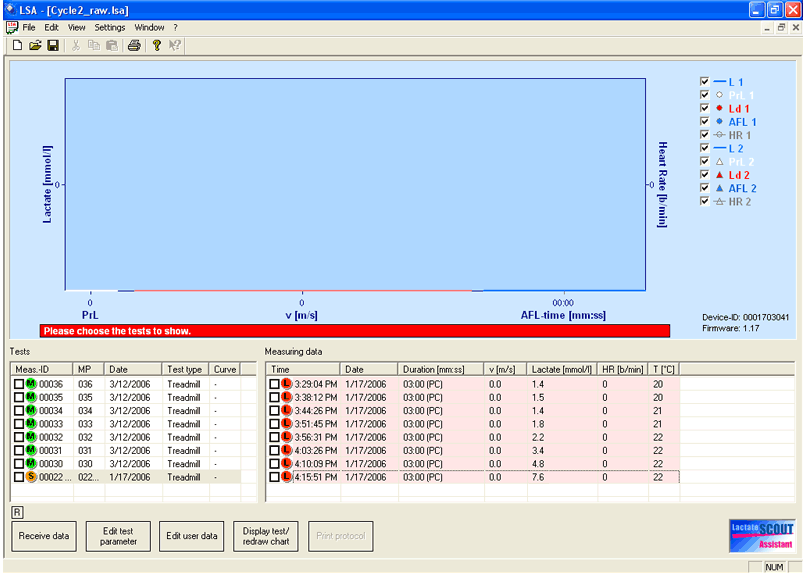
| When the option to convert the data to
a step test is selected, the individual data lines in the Tests
window disappear and a single line with a brown S designation replaces
them indicating that the data is now a step test associated with
this line. All the data in the Values window is now arranged in
time order with the most recent last. Some of the information for
the step test such as the effort level and heart rate is still missing.
The duration of 3 minutes is the default duration. But for this
test the athlete actually used 5 minute stages and this will be
changed later. |
|
Step 4 |
| |
|
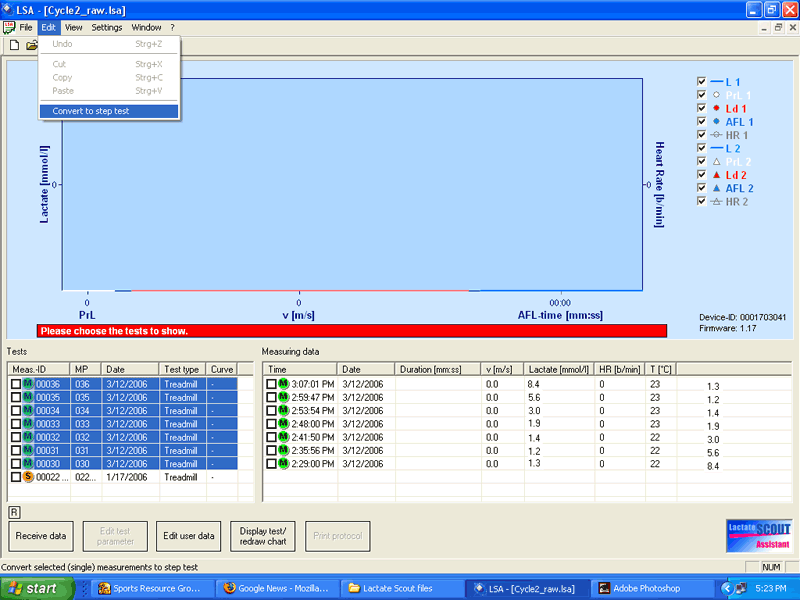
| Next the data for the second test conducted
on March 12th was selected. |
|
Step 5 |
| |
|
| The data for the second testing session
has also been converted into the step test format. |
|
Step 6 |
| |
|
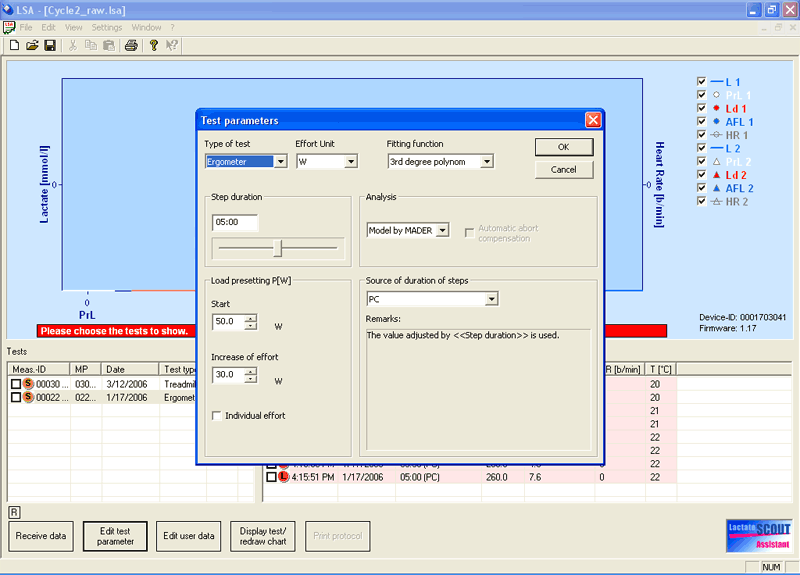
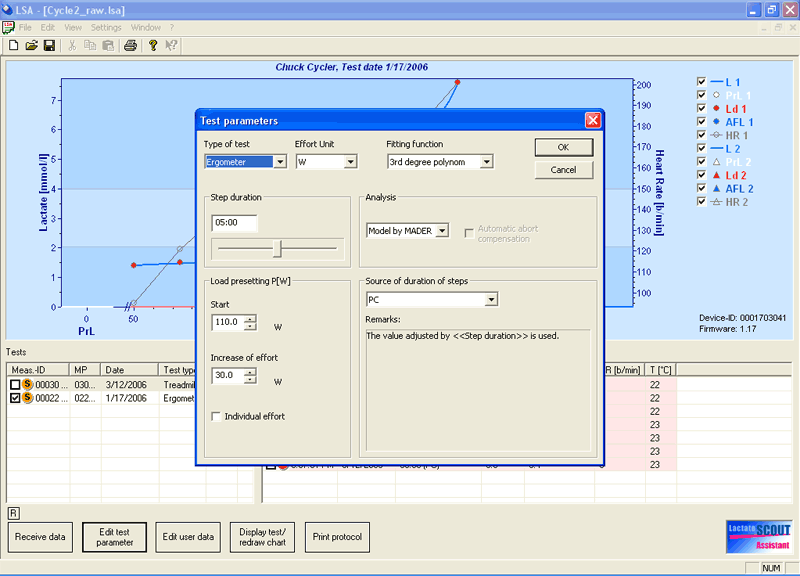
| The next step is to change some of the
parameters of the test. The first step test on January 17th is selected.
Click the Edit test parameter button at the bottom and a dialog
box appears. Choose ergometer instead of treadmill because this
was a cycle ergometer test performed on a trainer. The initial effort
level of the test was 50 watts. Each additional step or stage in
the step test was 30 W higher. The duration of each step was 5 minutes
and the method of analysis was the 4.0 mmol/l model of Mader. The
lactate curve will be generated from the data by a mathematical
process called a 3rd degree polynomial. This just smoothes the curve
and is nothing to worry about. |
|
Step 7 |
| |
|
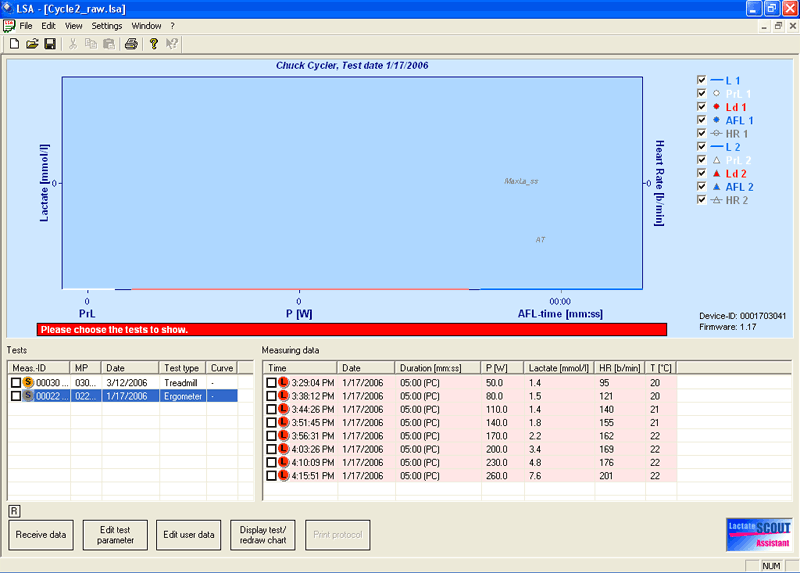
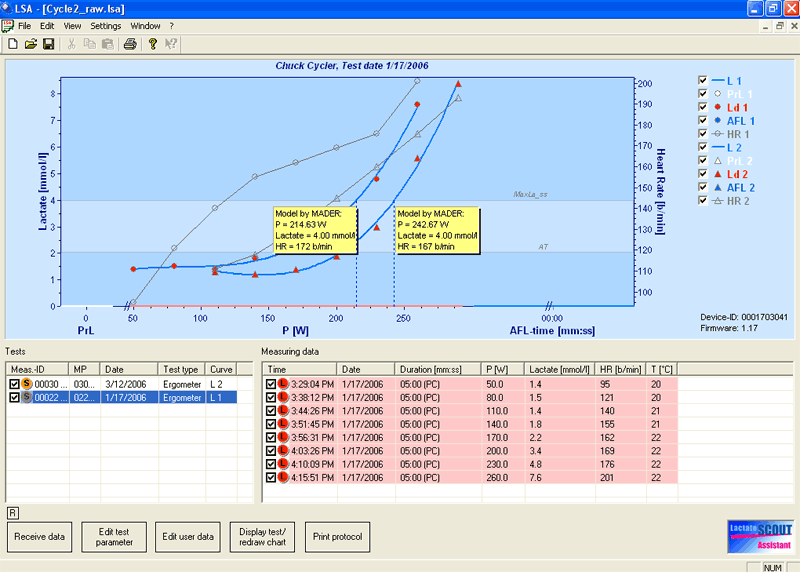
| Notice the data in the Values window.
The duration is 5 minutes, the effort level now indicates power
or watts and the first value starts at 50 watts. The heart rate
has been entered manually for each stage. The lactate values were
those downloaded from the analyzer. |
|
Step 8 |
| |
|
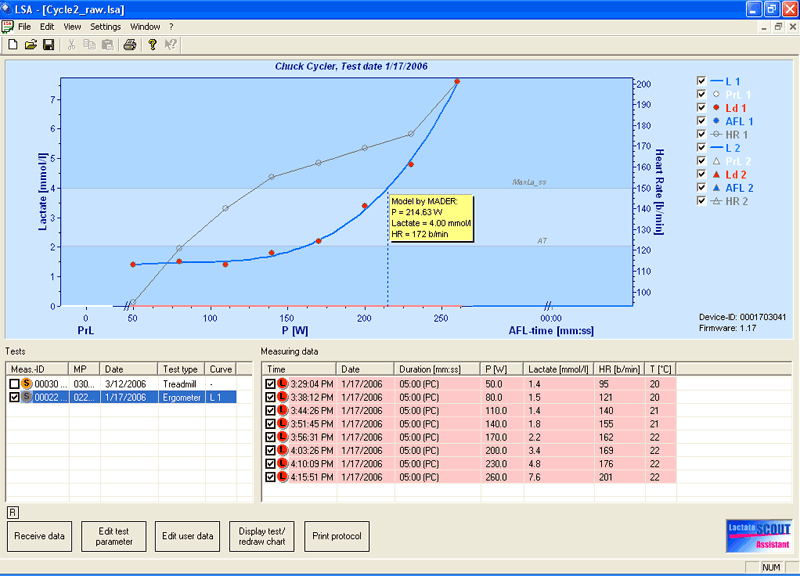
| Click on the Display test/redraw chart
button and the software draws the curve in the main window or "Graphics
Display" window based on the lactate readings and the mathematical
adjustment. The heart rate is also plotted. A box indicates where
the 4.0 mmol/l level is located in terms of power (watts) and heart
rate. The athlete may adjust training intensities based on these
readings. |
|
Step 9 |
| |
|
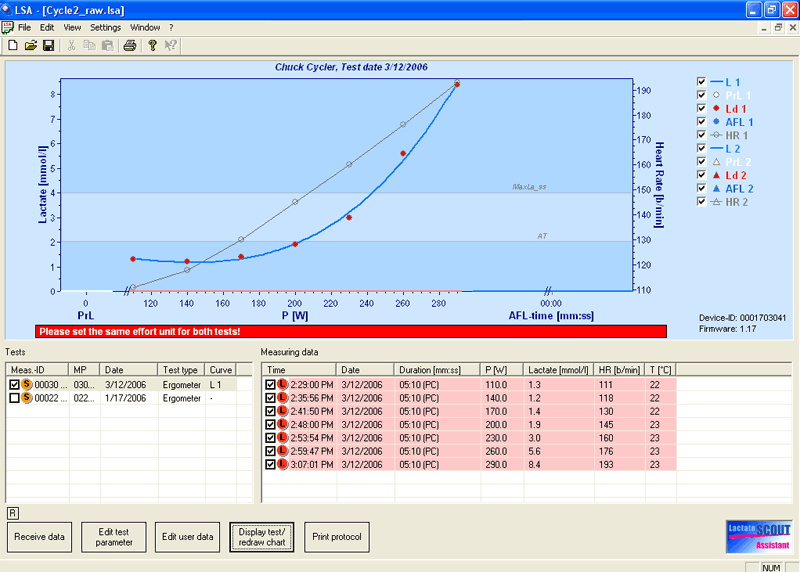
| The parameters for the test on March
12th are now adjusted the same way. This time the starting value
was 110 watts. |
|
Step 10 |
| |
|
| The data set for the second test is modified
and heart rates are entered. The Display test button is pushed and
the curve for the March 12th test is drawn. It is possible to print
each chart and the accompanying data. |
|
Step 11 |
| |
|
| Both tests can be charted at the same
time by using the checkboxes in the Tests box. The yellow boxes
indicate the effort levels and heart rates at 4.0 mmol/l for each
test. The software only allows for two tests to be compared at one
time. So it is possible to compare any two tests or any two athletes
using one test from each. |
 |
Comments |
| |
It is possible to program the analyzer
to group lactate readings into a step test at the time of the
step test. The subsequent readings are then grouped together into
a step test when they are imported into the graphing software.
We recommend that the user not do this. It requires more steps
to set up the analyzer to do this and it then limits how you can
use the data once it is in the computer. Once you have labelled
the data at the time of measurement, you cannot change this designation
in the program. If you prefer to use this option it is available.
It is also possible to classify a data reading at the time of
the test as a preliminary or resting reading or as a recovery
or after reading. This too can be done later in the graphing software.
We recommend you do it at this later stage because it is easier,
and can be changed later. Also many users never use these preliminary
or after readings for any analysis of the results. |
| |
|